How to Speed Up a Slow Computer: The Ultimate Performance Guide
Is your system dragging? Learn exactly how to speed up a slow computer with our expert guide on diagnostic checks, software optimization, and hardware upgrades.
Archive of Absolute Clarity is reader-supported. This page may display advertisements served by Google AdSense and other third-party networks. Ads are delivered automatically based on your browsing activity and are not editorial endorsements. We may earn a commission from links to products or services featured in sponsored content. Our editorial coverage is produced independently and is never influenced by advertisers or sponsors. See our Editorial Standards and Privacy Policy for more information.
A sluggish computer is more than just a nuisance; it is a productivity killer that breaks your workflow and wastes precious time every single day. Whether you are navigating complex spreadsheet calculations or simply trying to stream high-definition video, a system that stalls or takes minutes to boot up is a clear sign that your machine requires intervention. This comprehensive guide will walk you through the essential diagnostic steps, software tweaks, and hardware enhancements needed to return your device to peak efficiency.
Understanding the Root Causes of System Sluggishness
Before you start deleting files or replacing expensive components, you must first identify why your computer is performing poorly. Most performance issues stem from a combination of software bloat, background processes consuming RAM, and drive fragmentation. A diagnostic approach ensures that you do not spend money on hardware upgrades when a simple settings change could have solved the issue.
Start by opening the Task Manager on Windows or Activity Monitor on macOS to see exactly what is consuming your system resources. Look for processes that maintain high CPU or memory usage even when you are not actively using the associated application. If you notice a specific service consistently hogging 30% of your CPU, it is a primary candidate for removal or reconfiguration.
Performance bottlenecks are often deceptive; what feels like a slow processor is frequently just an overwhelmed memory controller or a background task stuck in an infinite loop.
Another frequent culprit is the accumulation of temporary cache files and legacy drivers that are no longer supported by current operating systems. These files can clutter the registry or system directories, forcing the operating system to perform additional seek time during file access. Identifying these hidden issues requires a methodical examination of your startup items and system services, which we will address in detail below.
Managing Startup Applications for Immediate Relief
One of the most effective ways to speed up a slow computer is by limiting the number of applications that launch automatically when you turn on your machine. Many programs, including communication tools, cloud storage clients, and peripheral managers, default to 'start at boot' settings during installation. Over time, having twenty applications launch at once can add several minutes to your startup sequence.
On Windows systems, press Ctrl + Shift + Esc to open the Task Manager, then navigate to the 'Startup' tab. You should systematically disable any application that you do not need the second you hit the desktop. Keep essentials like your antivirus, but feel free to disable software updaters or music players that can be opened manually later if needed.
On a Mac, go to System Settings, select General, and then Login Items to see what is currently configured to launch upon your login. Removing these items reduces the immediate strain on your RAM upon startup, allowing the OS to load core components much faster. By cleaning these entries, you can typically shave 15 to 30 seconds off your boot time immediately.
Optimizing Disk Space and File Management
Storage drives, particularly mechanical Hard Disk Drives (HDD), suffer significantly as they reach capacity. Once a drive hits 85% to 90% utilization, the OS struggles to find contiguous blocks of free space to write new data, resulting in fragmentation. This phenomenon forces the drive read-head to physically move more often, creating a massive bottleneck in performance.
To reclaim space, start by running your operating system's built-in disk cleanup utility, such as Storage Sense on Windows. This tool intelligently identifies and removes temporary files, system log files, and data left behind in the recycle bin. Additionally, uninstall large software packages or video games that you no longer use, as these are often the heaviest contributors to disk congestion.
If you are using a Solid State Drive (SSD), you do not need to worry about traditional fragmentation, but you should still maintain free space for the wear-leveling algorithms to function efficiently. Aim to keep at least 20GB of free space on your primary drive at all times to ensure the drive controller has enough room to manage data writes effectively. Moving your media library to an external drive is an excellent way to maintain a lean primary drive.
The Impact of RAM on Multi-Tasking Performance
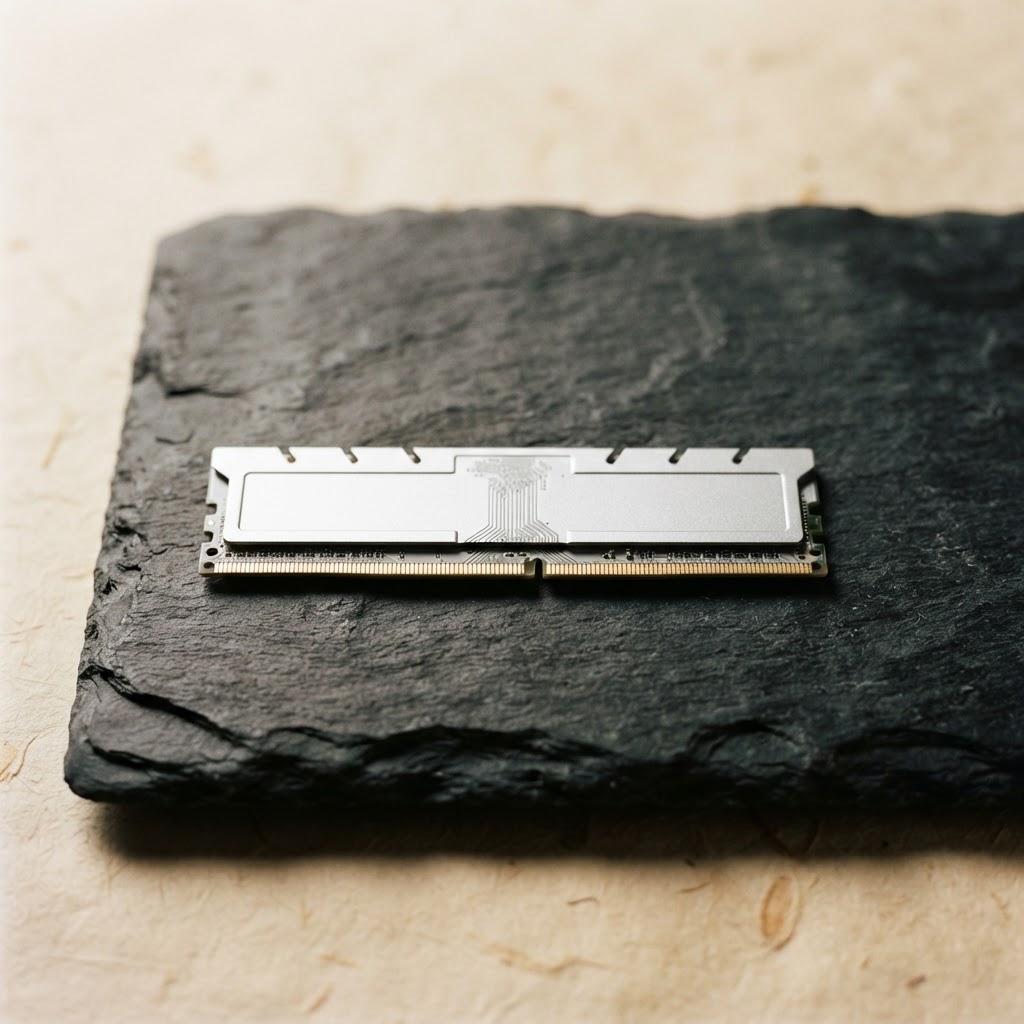
Random Access Memory (RAM) acts as your computer's short-term workspace. If your RAM is insufficient for your daily tasks—such as keeping thirty browser tabs open simultaneously—the system is forced to use your storage drive as 'virtual memory.' This swapping process is orders of magnitude slower than native RAM, causing your computer to crawl whenever you switch between programs.
To determine if you need more RAM, look at the memory graph in your Task Manager or Activity Monitor. If you notice your memory usage is constantly hovering above 85% while you work, you are effectively running out of headroom. Upgrading your RAM from 8GB to 16GB is often the most cost-effective hardware upgrade you can perform to see a tangible increase in speed.
- Check your motherboard specifications to ensure you are buying the correct generation of RAM (DDR4 vs DDR5).
- Ensure the memory speed matches your processor's capability to avoid stability issues.
- Always install sticks in pairs to take advantage of dual-channel performance.
For most users, 16GB is the current 'sweet spot' for performance. However, if you do video editing or run virtual machines, 32GB or more is recommended to ensure the system remains responsive under heavy sustained loads.
Transitioning from HDD to SSD Technology
If you are still running your operating system from a traditional mechanical HDD, you are experiencing the single biggest bottleneck in modern computing. Replacing a mechanical drive with a Solid State Drive (SSD) provides an instant, dramatic performance boost that makes the computer feel like it has been replaced entirely. The difference is not just subjective; it is measurable.
Mechanical drives offer read/write speeds of around 80-120 MB/s, whereas modern SATA SSDs hit 500 MB/s, and NVMe drives can exceed 7,000 MB/s. This speed difference manifests as boot times dropping from 90 seconds to under 15 seconds, and application loading times decreasing by 60% or more.
The shift from mechanical platters to NAND flash memory is akin to moving from walking to flying; it fundamentally changes the latency of every single system operation.
Cloning your existing drive to an SSD is easier than ever thanks to software tools like Macrium Reflect or Clonezilla. These programs create a perfect replica of your current setup on the new drive, so you do not have to reinstall Windows or your applications. After the cloning process, simply swap the drives, and your computer will immediately recognize the new, faster hardware.
Managing Background Processes and System Services
Even after clearing out startup apps, some services running in the background may consume resources. Many third-party software suites install 'update checkers' that remain active even if the main program is closed. You can view these services by running 'services.msc' in the Windows command prompt.
Be extremely careful when disabling services, as some are critical for system stability and network connectivity. Only disable services you are certain about, such as those related to software you have already uninstalled or printers you no longer use. If you are unsure about a service, search for it online to see what its function is before changing its status.
Another consideration is your antivirus software. While security is paramount, some suites are overly aggressive, scanning every file as you open it. If your computer is older, consider using the native, lightweight Windows Defender or a less intrusive alternative, as modern security software is significantly more efficient than the bloatware suites of the past.
Browser Optimization for Modern Web Usage
For most of us, the web browser is the most used application on our computer. Unfortunately, browsers are also notorious for eating memory and CPU cycles. Extensions are a common culprit; while useful, having a dozen extensions running concurrently can significantly slow down page loads and interface responsiveness.
Audit your extensions regularly and remove any that you do not use on a daily basis. Furthermore, consider using your browser’s built-in memory saver features, which automatically put background tabs to sleep when you are not looking at them. This simple toggle can free up hundreds of megabytes of RAM instantly.
- Clear your browsing history and cache once a month to prevent data bloat.
- Enable hardware acceleration settings in your browser menu.
- Limit the number of active tabs to what you can comfortably view at once.
By keeping your browser lean and avoiding excessive plugin usage, you will find that your daily web interactions remain snappy even on older machines that would otherwise struggle with the heavy demands of modern websites.
Troubleshooting Overheating and Thermal Throttling
Computers have built-in safety mechanisms that slow down the processor when temperatures get too high. This is called 'thermal throttling.' If your computer sounds like a jet engine or feels hot to the touch, it is likely that the cooling system is failing or clogged with dust, causing the hardware to artificially limit its own speed to prevent permanent damage.
If you are using a desktop, carefully open the case and use compressed air to clean out the dust from the heat sinks and fans. Pay special attention to the GPU and CPU fans, as these are the most sensitive to debris. For laptops, use a can of compressed air to blow out the intake and exhaust vents, which can often restore proper airflow.
If you are technically proficient, replacing the thermal paste between your CPU and its heat sink can yield significant temperature drops. Over time, thermal paste dries out and loses its ability to conduct heat effectively. Replacing it with a high-quality compound can lead to a 5-10 degree Celsius improvement, preventing the system from needing to throttle its performance during demanding tasks.
Finalizing Your Performance Strategy
After completing the steps above, it is vital to perform a final maintenance check. Restart your computer one last time and observe how the system handles the boot sequence and the launching of your core applications. If you still find the performance lacking, a clean installation of your operating system is the 'nuclear option' that resets the machine to its factory state.
Backup all of your files to an external drive or cloud storage before proceeding with a fresh OS install. This process wipes everything, removing years of accumulated registry errors, driver conflicts, and ghost files that are difficult to trace manually. It is the closest thing to buying a brand-new computer without spending a dime.
Following a fresh install, be mindful of what you reinstall. Only add the tools you actually need, and avoid the 'install everything just in case' mentality that leads to system rot. By maintaining this disciplined approach to software management, you can keep your computer running like new for years to come.
Frequently Asked Questions
Priya Raman
Technology Editor · Archive of Absolute Clarity
Priya Raman writes about consumer technology, digital privacy, and security with a focus on practical guidance rather than hype. A former contributor to a leading technology magazine, she holds a degree in Computer Science and has worked as a product security analyst. Her reporting emphasizes independent testing and verifiable claims over vendor marketing.
- BSc Computer Science
- Former contributor, leading technology magazine
- Former product security analyst
Expertise: Digital privacy · Cybersecurity · Consumer software · Product testing