How to Speed Up a Slow Computer: A Comprehensive Guide
Is your system sluggish? Learn how to speed up a slow computer using expert-backed maintenance techniques that restore performance and reliability.
Archive of Absolute Clarity is reader-supported. This page may display advertisements served by Google AdSense and other third-party networks. Ads are delivered automatically based on your browsing activity and are not editorial endorsements. We may earn a commission from links to products or services featured in sponsored content. Our editorial coverage is produced independently and is never influenced by advertisers or sponsors. See our Editorial Standards and Privacy Policy for more information.
Is your system sluggish? Learn how to speed up a slow computer using expert-backed maintenance techniques that restore performance and reliability. In the digital age, a computer that lags behind your pace is more than a mere annoyance; it is a direct hindrance to your productivity and creative flow. Whether you are navigating massive spreadsheets, compiling code, or simply managing daily correspondence, the bottleneck of a slow machine can turn minor tasks into hours of frustration. This comprehensive guide serves as your roadmap to reclaiming the speed you once enjoyed when your device was fresh out of the box. We will bypass the common, superficial tips and dive deep into the underlying mechanics of your operating system, memory management, and hardware limitations to ensure your computer runs with peak efficiency.
Understanding the Root Causes of System Latency
Performance degradation is rarely the result of a single catastrophic failure; rather, it is usually a cumulative effect of software bloat, file fragmentation, and resource-heavy background processes. When you first install an operating system, it is clean and optimized for rapid execution, but as you install applications, download files, and browse the web, the system registry and storage drive become increasingly cluttered. These layers of digital debris force your processor and RAM to work exponentially harder just to perform basic input and output operations, leading to that dreaded spinning wheel of death or stuttering user interface.
Hardware aging is another critical factor that users often overlook, particularly regarding storage drives and cooling systems. Mechanical hard disk drives (HDDs) suffer from physical wear and tear as they age, which physically slows down the speed at which the read/write heads can locate data. Furthermore, as thermal paste between your CPU and heatsink dries out over years of use, your computer may engage in thermal throttling to prevent hardware damage, artificially capping your performance. Understanding these physical constraints is essential before attempting software-level optimizations.
Software conflicts and incomplete uninstalls represent the final pillar of system sluggishness, where legacy drivers or background services keep running long after their parent application has been removed. This "orphaned" data keeps the system occupied with processes that serve no purpose to the current user experience, stealing cycles from your active applications. By diagnosing these specific categories—bloat, physical wear, and process mismanagement—we can systematically dismantle the barriers holding your machine back from its true potential.
Optimizing Your Startup and Background Processes
One of the most immediate impacts on boot times and overall responsiveness is the sheer volume of software set to trigger upon system launch. Many applications, from cloud storage clients to hardware drivers and chat platforms, assume that you need them available the second you turn your machine on, yet they often consume significant resources in the background. By taking manual control of your startup items, you can drastically cut the time it takes for your desktop to become usable, often saving upwards of thirty seconds on every boot.
For Windows users, the Task Manager remains the definitive tool for managing this, specifically under the 'Startup' tab, while macOS users should look to 'Login Items' within System Settings. It is a best practice to keep only essential security software and necessary system drivers active at boot, as everything else can simply be opened manually when you actually need it. Consider this a triage process: if you haven't opened a specific app in the last week, there is absolutely no reason for it to be running in the background, consuming your precious RAM.
"The most efficient computer is not the one with the most powerful hardware, but the one with the least amount of unnecessary activity competing for the CPU's attention." - Senior Systems Architect
Beyond simple boot items, background services and 'helper' processes can be massive drains on system performance. Many modern applications utilize a 'background service' model, which means that even after you close the app window, the process persists in the system tray to ensure 'fast re-opening.' By disabling these persistent services for apps you rarely use, you can free up memory for the software that actually matters, such as your browser or creative suite. Always exercise caution, but do not be afraid to disable services that you recognize as non-essential; your computer will be much faster for it.
The Strategic Upgrade: Moving to Solid State Storage
If your computer currently runs on a traditional mechanical Hard Disk Drive, you are operating with the single largest performance bottleneck possible in modern computing. An SSD replaces spinning magnetic platters with high-speed NAND flash memory, which removes the 'seek time'—the time it takes for a physical head to find data on a spinning disk—entirely. In practical terms, this can reduce your operating system load time from over a minute to less than ten seconds, transforming the responsiveness of your entire environment.
When considering an upgrade, look for NVMe M.2 drives if your motherboard supports them, as they offer significantly higher data transfer rates than standard SATA SSDs. Even a budget-friendly SATA SSD replacement will provide a night-and-day difference, often breathing five or more years of additional life into an aging laptop or desktop. The process of migrating your OS involves creating a disk clone, which essentially creates a pixel-perfect copy of your current system on the new, faster drive, allowing you to keep all your settings and files intact.
Beyond just speed, SSDs are more durable because they have no moving parts, making them ideal for mobile devices that are subject to movement. The impact of this upgrade cannot be overstated; it is arguably the most effective single investment you can make for performance. If you feel your computer is 'too old' to save, it is almost certainly because it is still relying on a spinning disk drive for its primary system tasks.
Managing Memory and Resource-Heavy Applications
Random Access Memory (RAM) acts as your computer's short-term workspace, and when it fills up, the system is forced to move data into 'Virtual Memory' on your storage drive. This is known as paging, and it is catastrophic for speed because storage drives, even fast SSDs, are significantly slower than RAM. If you find that your system becomes sluggish whenever you have more than ten browser tabs open or multiple heavy programs running, it is a clear indicator that your physical RAM capacity is being exceeded.
To manage this, start by identifying the biggest offenders using your system's activity monitoring tool, like Activity Monitor on Mac or the Performance tab in Windows Task Manager. You will often find that web browsers are the primary culprits due to their tendency to keep every active tab running in a full process. Utilize 'tab-suspending' browser extensions to force background tabs to go into a sleep state, which releases the RAM they were holding onto for immediate use by your current task.
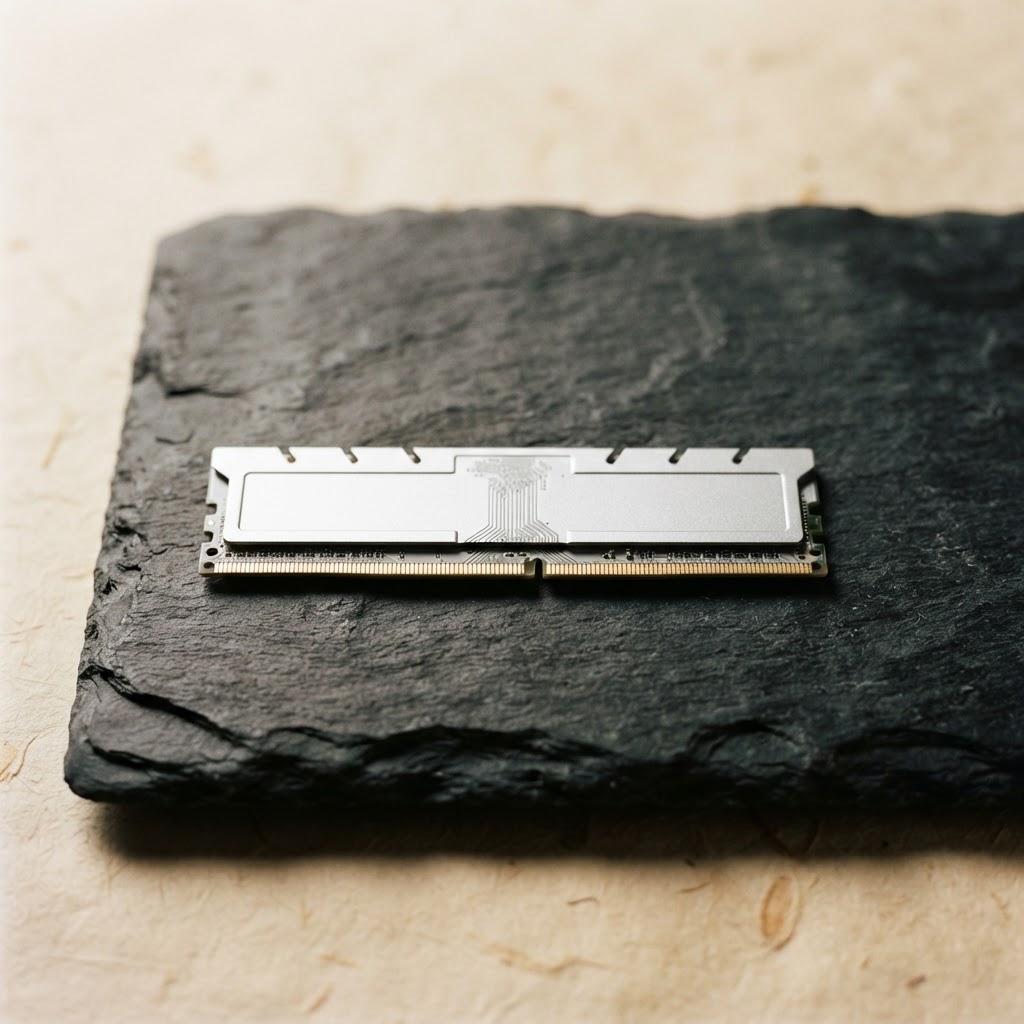
If you consistently see memory usage above 80% during normal workflows, it is time to consider adding more physical RAM. Modern systems generally require at least 16GB of RAM to run comfortably with contemporary software; if you are sitting at 8GB or lower, you are likely struggling with constant paging. Adding an extra stick of RAM is often a straightforward, affordable procedure that provides a noticeable stability boost for multitasking, effectively ending the stuttering associated with switching between programs.
Cleaning Up Storage Bloat and Temporary Files
Over time, your storage drive accumulates a mountain of temporary files, cache data, and remnants from software updates that can occupy gigabytes of space. While storage space does not directly determine speed in the same way RAM does, a drive that is nearing capacity will suffer from reduced performance. This is because the OS needs 'breathing room' to move files around, manage logs, and perform system-level housekeeping; when a drive is 95% full, these background processes become extremely slow.
Implement a monthly routine to run your operating system's built-in disk cleanup utilities, such as Storage Sense on Windows or the Disk Utility cleanup options on macOS. These tools safely target system logs, recycle bin items, and temporary installation files that serve no further purpose. For a more aggressive approach, consider using a third-party directory scanner to visualize your storage and identify large, forgotten files like old video project files or duplicate downloads that are taking up space.
"A cluttered disk is a slow disk; by maintaining at least twenty percent of your drive capacity as free space, you provide the OS with the necessary headroom to handle temporary file writes without compromising latency." - Data Optimization Expert
Be wary of 'PC Optimizer' software that promises to speed up your computer with a single click, as these often contain adware or useless scripts that can actually slow your system further. Stick to official, trusted tools from your OS vendor, or reputable utilities that focus purely on file management. Keeping your drive lean not only improves file search times but also ensures that your system updates and background indexers operate at peak efficiency.
The Role of Drivers and Firmware Updates
Drivers are the bridge between your hardware and your software; if they are outdated, your OS might be communicating with your components in a sub-optimal or even buggy manner. Graphics card drivers, in particular, receive regular performance updates that fix glitches, reduce resource usage, and improve compatibility with modern software. If you have been ignoring those update prompts, you might be missing out on optimizations that were specifically engineered to improve the performance of your exact hardware.
Checking for updates should include your motherboard chipset drivers, which are the foundational pieces of software that dictate how your CPU talks to your RAM, storage, and peripheral ports. You can find these by visiting your computer manufacturer’s support website, typing in your model serial number, and downloading the latest 'Chipset' or 'System' drivers. While this is a more technical task than standard app updates, it is highly effective for solving intermittent stuttering or connectivity issues.
Additionally, check for BIOS or UEFI firmware updates for your motherboard. While you should be careful and follow instructions exactly during a BIOS update, these often contain critical performance fixes and stability patches. Always ensure your computer is plugged into a reliable power source before performing a BIOS update, as a power failure during the process can render the hardware unusable, but for most modern machines, the benefits far outweigh the risk.
Improving Browser Efficiency and Web Performance
For most users, the browser is the single most-used application, and it is frequently the source of perceived system slowness. Websites have become increasingly complex, incorporating massive amounts of JavaScript and heavy media that can overwhelm your system if you are not careful about your extension environment. Extensions, while useful, run inside the browser and consume CPU and RAM for every single web page you load, often leading to a 'death by a thousand cuts' scenario.
To optimize, audit your browser extensions and remove any that you do not actively use on a daily basis. Each extension is a persistent background process that siphons resources away from your web experience. Furthermore, disable 'Hardware Acceleration' only if you are experiencing graphical glitches; otherwise, keep it enabled to allow your browser to offload rendering tasks to your graphics hardware, which is significantly faster than doing so via the CPU.
Consider the following list of practices for a faster web experience:
- Use a built-in ad blocker to prevent resource-heavy ads from loading.
- Periodically clear your browser cache, though not so often that it slows down page loads.
- Use lightweight, privacy-focused browsers that are optimized for minimal resource usage.
- Keep only the most essential tabs open and bookmark the rest for later reference.
Thermal Management: Keeping Your CPU Cool
If your computer is a laptop or a desktop that is several years old, the internal cooling system may be compromised by dust buildup or degraded thermal interface material. When your CPU gets too hot, it automatically slows down its clock speed to reduce heat output, a process that is invisible to the user but highly detrimental to performance. You might notice the fans spinning at maximum speed constantly, accompanied by system lag during intense tasks.
For desktop users, opening the case and using a can of compressed air to clean the heatsinks and fans is a quick and effective way to restore cooling capacity. Focus on the intake and exhaust vents, as these are the areas that accumulate the most dust over time, acting as insulation that traps heat inside the chassis. If you are comfortable with more technical work, removing the CPU cooler and reapplying high-quality thermal paste can drastically improve heat dissipation and prevent thermal throttling.
Laptop owners have a slightly more difficult challenge, but tilting the device to allow for better airflow can help. If you notice your laptop gets extremely hot and noisy, consider using a laptop cooling pad, which provides an active airflow solution to supplement the internal fans. Keeping your device on a hard, flat surface rather than a blanket or pillow is the simplest step you can take to prevent the intake vents from being blocked, ensuring consistent airflow.
Comparison: Software Tweaks vs. Hardware Upgrades
When deciding where to focus your efforts, it is important to weigh the return on investment for both software and hardware solutions. Software tweaks are free and immediate, making them the logical first step for every user, but they have a distinct 'ceiling' of performance improvement. You can optimize your background processes and clean your disk, but you cannot software-engineer your way past the physical limitations of an old, mechanical spinning hard drive or a total lack of RAM.
Use this guide as a tiered approach: begin with the software-based cleanup steps discussed in sections two through seven to see if you can achieve your desired performance levels without spending money. If, after completing these steps, your system still struggles with basic operations like opening folders or launching common applications, your bottleneck is likely hardware-related. In this scenario, moving to an SSD or increasing your RAM will yield a transformation that no amount of software configuration can replicate.
- Software Maintenance: Addresses bloat, startup latency, and driver efficiency; best for 'feeling' more responsive.
- Hardware Upgrades: Addresses physical throughput, memory capacity, and thermal limits; best for 'real-world' processing speed.
Ultimately, a healthy computer is a balanced ecosystem. Even with the best hardware, a poorly managed software environment will eventually lag, just as the most optimized operating system will crawl on outdated, failing hardware. By mastering both ends of the spectrum, you ensure that your device remains a powerful tool rather than a source of daily frustration. Consistency is the secret; spend fifteen minutes once a month maintaining your system, and you will rarely need to worry about significant performance drops.
Frequently Asked Questions
Priya Raman
Technology Editor · Archive of Absolute Clarity
Priya Raman writes about consumer technology, digital privacy, and security with a focus on practical guidance rather than hype. A former contributor to a leading technology magazine, she holds a degree in Computer Science and has worked as a product security analyst. Her reporting emphasizes independent testing and verifiable claims over vendor marketing.
- BSc Computer Science
- Former contributor, leading technology magazine
- Former product security analyst
Expertise: Digital privacy · Cybersecurity · Consumer software · Product testing