How to Speed Up a Slow Computer: A Comprehensive Performance Guide
Learn how to speed up a slow computer with our expert guide. We break down actionable, step-by-step solutions to restore your system to peak performance today.

Archive of Absolute Clarity is reader-supported. This page may display advertisements served by Google AdSense and other third-party networks. Ads are delivered automatically based on your browsing activity and are not editorial endorsements. We may earn a commission from links to products or services featured in sponsored content. Our editorial coverage is produced independently and is never influenced by advertisers or sponsors. See our Editorial Standards and Privacy Policy for more information.
A sluggish computer can transform a productive day into a frustrating experience of spinning loading icons and frozen applications. Whether you rely on your machine for professional creative work or casual daily tasks, performance bottlenecks often stem from a combination of software bloat, hardware limitations, or simple background resource consumption. Understanding how to speed up a slow computer requires a methodical approach that addresses the root causes rather than temporary fixes.
Auditing Your Startup Programs for Instant Gains
One of the most significant reasons a computer feels slow immediately after booting up is the sheer volume of software set to launch automatically. Many applications, from cloud storage clients to peripheral device drivers, sneak their way into your startup sequence without your express consent. By limiting these background processes, you reclaim valuable system memory and CPU cycles that are otherwise wasted before you even open your first browser tab.
To manage these in Windows, press Control, Shift, and Escape to open the Task Manager, then navigate to the Startup tab. You will see a list of every application that triggers during the boot process, often labeled by its impact on startup time. Disable any non-essential services, such as messaging apps or game launchers, but exercise caution: avoid disabling system-critical drivers related to audio, graphics, or your motherboard chipset.
On macOS, navigate to System Settings, select General, and click on Login Items. Removing entries from this list is straightforward and highly effective for reducing wait times. Consistently auditing this list—at least once a quarter—will ensure your system startup remains crisp and responsive over time.
Understanding the Impact of Background Processes
Beyond startup programs, individual applications often perform 'hidden' work in the background that consumes CPU resources. This is particularly common with antivirus suites, indexers, or update checkers that activate during your most intense work sessions. When your computer feels sluggish, the Task Manager (Windows) or Activity Monitor (macOS) serves as your primary diagnostic tool to identify these resource hogs.
Sort the list by CPU or Memory usage to see exactly what is consuming the most power. If you notice a specific process consistently hovering above 20% CPU usage without a clear reason, you might be looking at a software conflict or a corrupt installation. Restarting the process is the first step, but if the issue persists, reinstalling the offending application is often the best path forward.
"Efficiency is not about doing more things; it is about ensuring that the things you do are not being throttled by unnecessary digital weight." - Archive of Absolute Clarity Editorial
It is vital to distinguish between system processes and user applications. System processes, shown as 'Windows Processes' or 'Kernel' tasks, should generally be left alone unless they are consuming an abnormal amount of resources, which could indicate a malware infection or a driver loop error.
The Role of Solid State Drives (SSDs)
If your computer is still using a traditional mechanical Hard Disk Drive (HDD) as its primary boot drive, you are suffering from the single biggest performance bottleneck in modern computing. An SSD offers read and write speeds that are ten to fifty times faster than a spinning platter drive, fundamentally changing how quickly an operating system interacts with its files. Upgrading to an SSD is the most effective hardware intervention you can perform.
Switching from an HDD to a SATA or NVMe SSD reduces boot times from minutes to seconds and makes application launches almost instantaneous. Modern operating systems are designed with the high-speed random access patterns of flash storage in mind; running them on a legacy mechanical drive is like trying to drive a sports car on a dirt track. The investment is relatively low, typically ranging from $50 to $150 depending on the storage capacity required.
If you are technically proficient, you can use cloning software to migrate your existing operating system and files onto a new SSD, allowing you to bypass the need for a full reinstallation of your programs. This process preserves your settings and preferences while providing the massive speed upgrade of solid-state architecture.
Optimizing Browser Performance and Memory Usage
For the vast majority of users, the web browser is where 90% of computing time is spent, making it a major site for performance degradation. Too many open tabs, coupled with heavy extensions, can easily consume 8GB or 16GB of system memory. Start by clearing your cache and removing extensions that you no longer use, as these small programs act as constant background scripts.
Modern browsers like Chrome, Edge, and Safari have built-in features to manage memory, such as 'Memory Saver' or 'Sleeping Tabs.' Ensure these are enabled in your settings. Furthermore, periodically clearing your browser's history and site data can prevent the database files from becoming bloated and slowing down the rendering engine.
- Disable unnecessary add-ons that track user activity.
- Use a tab-suspender extension if you tend to keep dozens of pages open.
- Update your browser regularly to benefit from underlying performance improvements.
Managing System Storage and File Fragmentation
While file fragmentation is less of a concern on SSDs than it was on HDDs, overall storage health remains critical for system performance. A drive that is filled to capacity—specifically one with less than 10% of its total space remaining—will experience significant slowdowns because the operating system struggles to find contiguous space to write temporary swap files. Regularly clearing out the 'Downloads' folder and using disk cleanup tools to remove temporary logs is a best practice.
On Windows, the built-in Storage Sense tool is excellent for automating the deletion of temporary files. macOS users can utilize the 'Optimize Storage' feature in the system settings, which intelligently moves older files to the cloud to free up local space. It is a simple habit, but one that ensures the OS has enough 'breathing room' to function efficiently.
"A clean drive is a fast drive; when the operating system has the freedom to manage its file structures without obstruction, the entire machine responds with renewed vigor." - Archive of Absolute Clarity Editorial
Consider keeping your personal files, such as large videos or high-resolution photos, on an external drive or a cloud storage service. Keeping the internal system drive for just the operating system and essential applications ensures that your computer spends less time searching through vast directories.
Malware and Security Considerations
Sometimes, a slow computer is a symptom of malicious software working in the background to compromise your data or use your system resources for botnet activities. Malware can hijack your CPU or bandwidth, leading to sudden, unexplained drops in performance. Running a reputable security scan is an essential step in diagnosing why your computer is performing below its standard.
Stick to well-known, established security suites. Avoid 'registry cleaners' or 'performance booster' software that claims to fix everything with one click; these are almost universally scams that introduce more instability than they resolve. Your operating system's built-in security, such as Windows Defender, is highly capable of detecting modern threats without the bloat of third-party alternatives.
If you suspect an infection, download a reputable, free version of an on-demand malware scanner. Run a 'full system scan' while in Safe Mode to ensure the malware cannot hide behind active system processes. If the performance remains poor even after a clean scan, there may be deeper file corruption at play.
Keeping Drivers and Operating Systems Updated
Hardware manufacturers release driver updates to fix compatibility issues and increase performance efficiency. An outdated graphics card driver, for instance, might cause frame drops in both games and professional design software. You should check the websites of your component manufacturers—specifically for the GPU and motherboard chipset—periodically.
Operating system updates (Windows Update or macOS Software Update) should also be treated as a priority. These updates often include critical 'under the hood' optimizations that improve how the kernel handles CPU scheduling and power management. While it is tempting to delay these updates, they are vital for long-term stability and speed.
It is equally important to avoid 'driver update' software that suggests you have hundreds of outdated components. Most of these programs provide generic drivers that may cause more harm than good. Always source your drivers directly from the official manufacturer website (Nvidia, AMD, Intel, or your laptop's support page).
When to Consider a Clean Reinstall
If you have tried the steps above and your system is still significantly slower than it was when it was new, you might be dealing with 'OS rot.' Over the course of several years, the accumulation of registry errors, broken link files, and partially uninstalled software can make the system behave erratically. A clean install of the operating system is the most comprehensive way to reset your machine to factory-fresh speeds.
Before taking this step, ensure that you have a comprehensive backup of all your personal data. Use a cloud backup solution or an external drive to clone your entire user profile. Once you have verified your backup, you can use the system settings to 'Reset this PC' or 'Erase All Content and Settings,' effectively wiping the drive and reinstalling a pristine version of the OS.
This is a nuclear option, but it is often faster than spending ten hours attempting to troubleshoot specific, obscure system issues. It provides a clean slate, free from the years of accumulated digital detritus that eventually slows down every computing device.
Assessing Hardware Limitations and the Path Forward
If you are running the latest software on hardware that is over seven or eight years old, it is possible that your computer has reached its functional limit. Software developers increase the resource demands of their programs over time, and older CPUs and limited RAM simply cannot keep up. If you only have 4GB or 8GB of RAM in 2024, your system is likely hitting a memory wall every time you open a modern application.
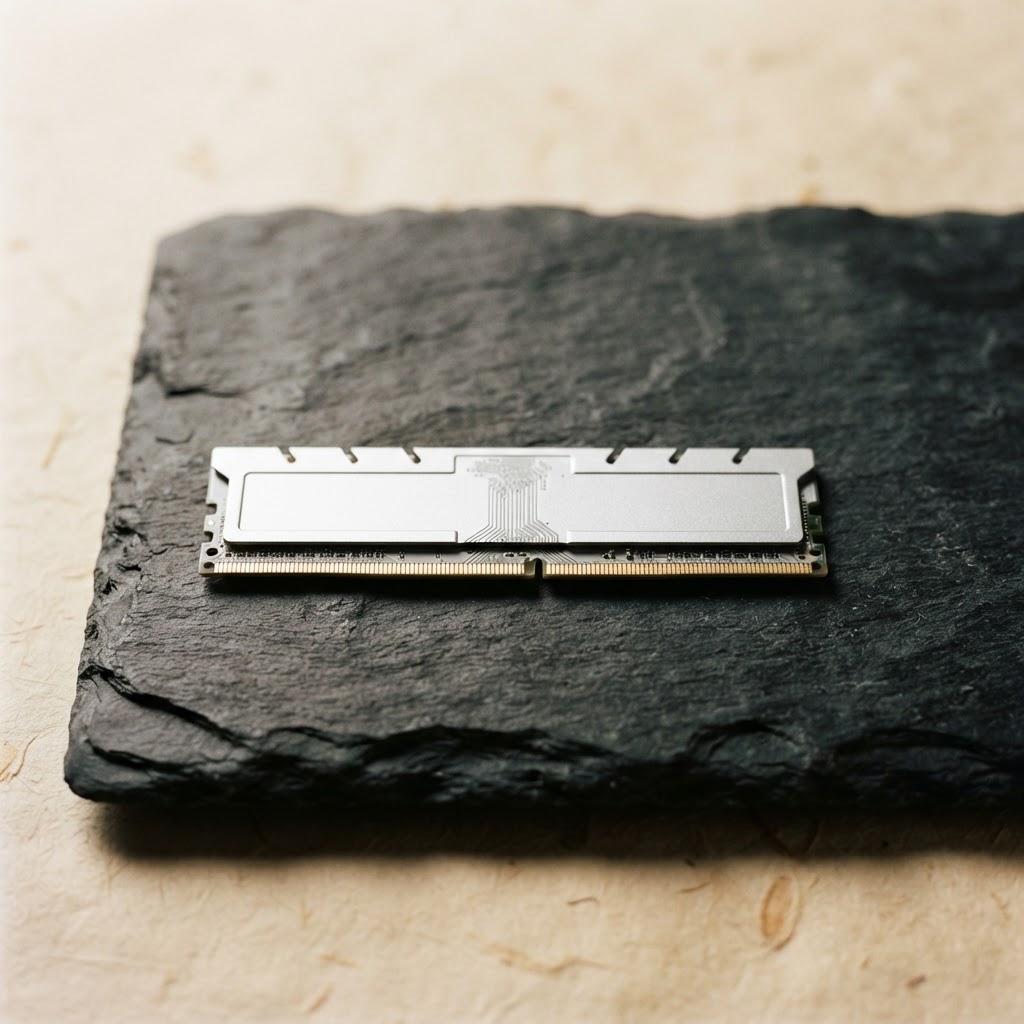
Adding more RAM is one of the cheapest and easiest ways to revitalize an aging machine. Moving from 8GB to 16GB can drastically reduce the frequency of the system using the 'page file' on your hard drive, which is significantly slower than physical RAM. If your laptop has soldered-in memory, however, you may be limited to the original configuration.
If hardware upgrades or a clean install fail to provide the results you need, it may be time to consider replacing the machine. A balanced approach of optimization, upgrading, and finally, recognizing when a system has reached the end of its useful lifespan will ensure you always maintain a productive digital environment.
Frequently Asked Questions
Priya Raman
Technology Editor · Archive of Absolute Clarity
Priya Raman writes about consumer technology, digital privacy, and security with a focus on practical guidance rather than hype. A former contributor to a leading technology magazine, she holds a degree in Computer Science and has worked as a product security analyst. Her reporting emphasizes independent testing and verifiable claims over vendor marketing.
- BSc Computer Science
- Former contributor, leading technology magazine
- Former product security analyst
Expertise: Digital privacy · Cybersecurity · Consumer software · Product testing